
Discovery
Hosts + Services
Quickly map what devices and services are present.
Network Visibility for Everyone
ScanLan for iPhone helps you discover devices, spot open services, and understand network activity in minutes.
Discovery
Hosts + Services
Quickly map what devices and services are present.
Awareness
What Changed
Compare scans to catch new, removed, or unexpected devices.
Insights
Deep Scan
Drill into one device when you want more detail.
How It Works
1
Run a local scan on your current Wi-Fi network and discover active hosts quickly.
2
Inspect host details, service indicators, and optional deep scan output to understand exposure.
3
Export findings as CSV, JSON, TXT, or changes-only CSV for records and follow-up.
Who this is for
Core Workflow
Scan local targets, a single IP, or a domain, then filter by cameras, remote access, admin panels, OT, and file shares.
Confidence explainers and verification probes help reduce false negatives and noisy changes.
Export full results in CSV, JSON, and TXT, plus changes-only CSV for reporting and record keeping.
Core scanning runs on-device with tracking disabled. Great for checking unfamiliar networks, like a rental or Airbnb stay.
Designed for fast local recon workflows on iOS without desktop setup.
Core discovery and service inspection run on your device.
Open the app, grant local network access, and scan.
Interface
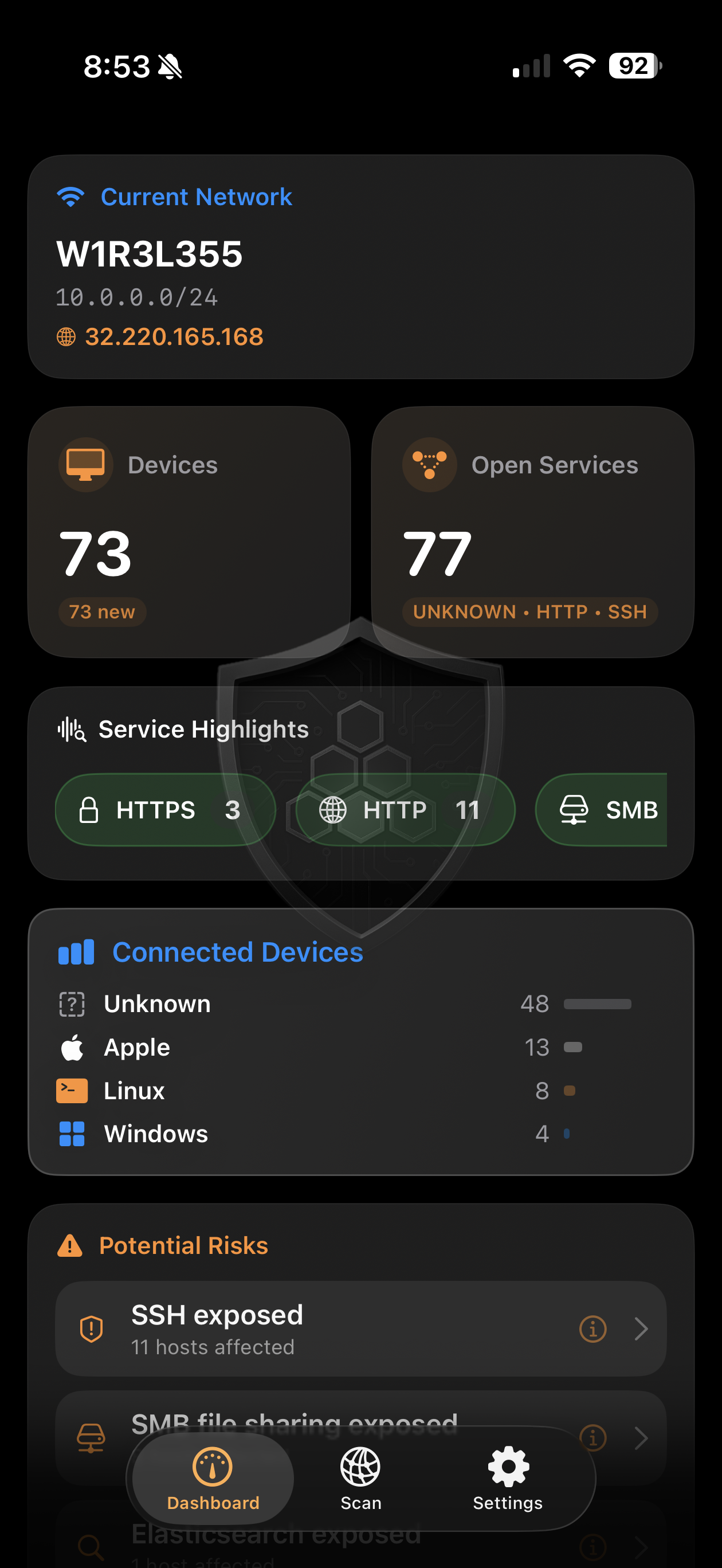
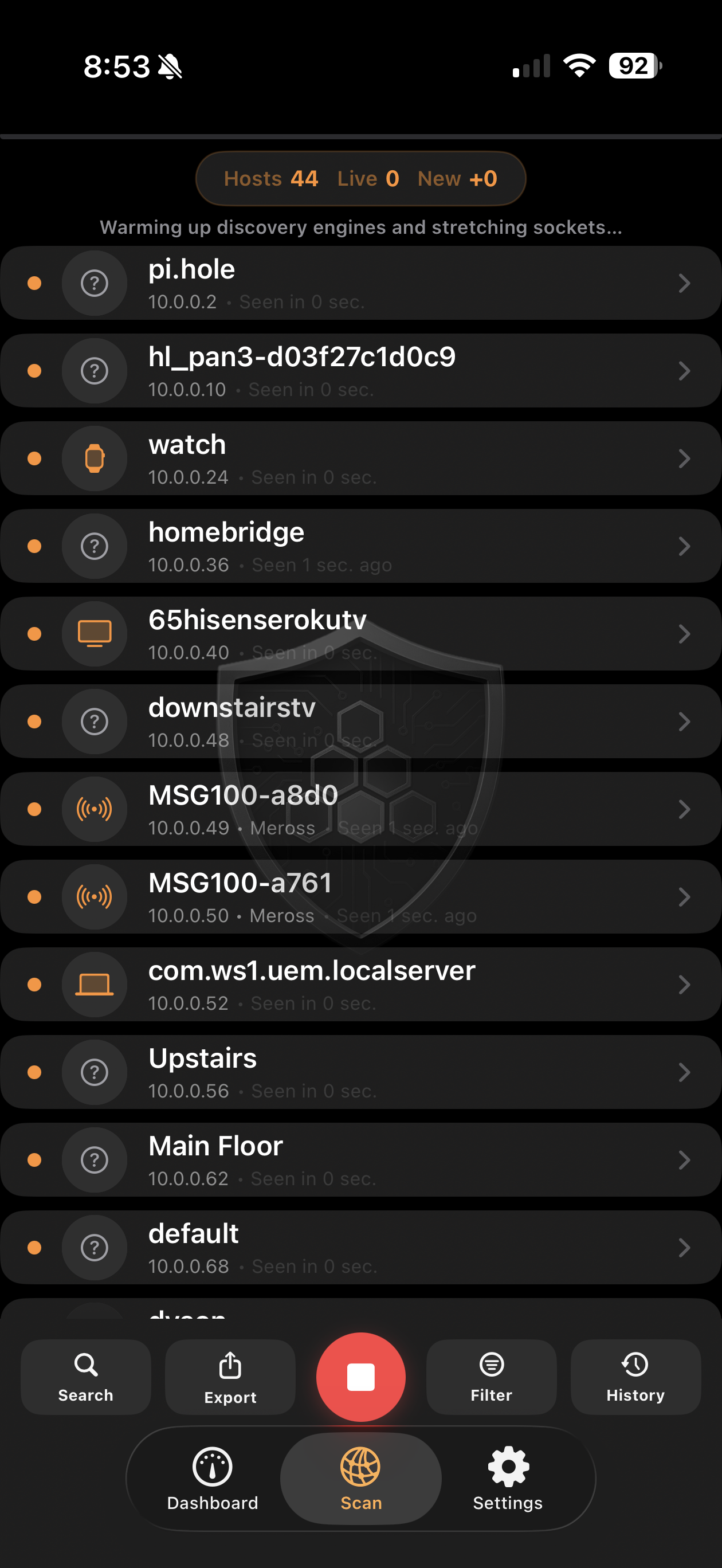
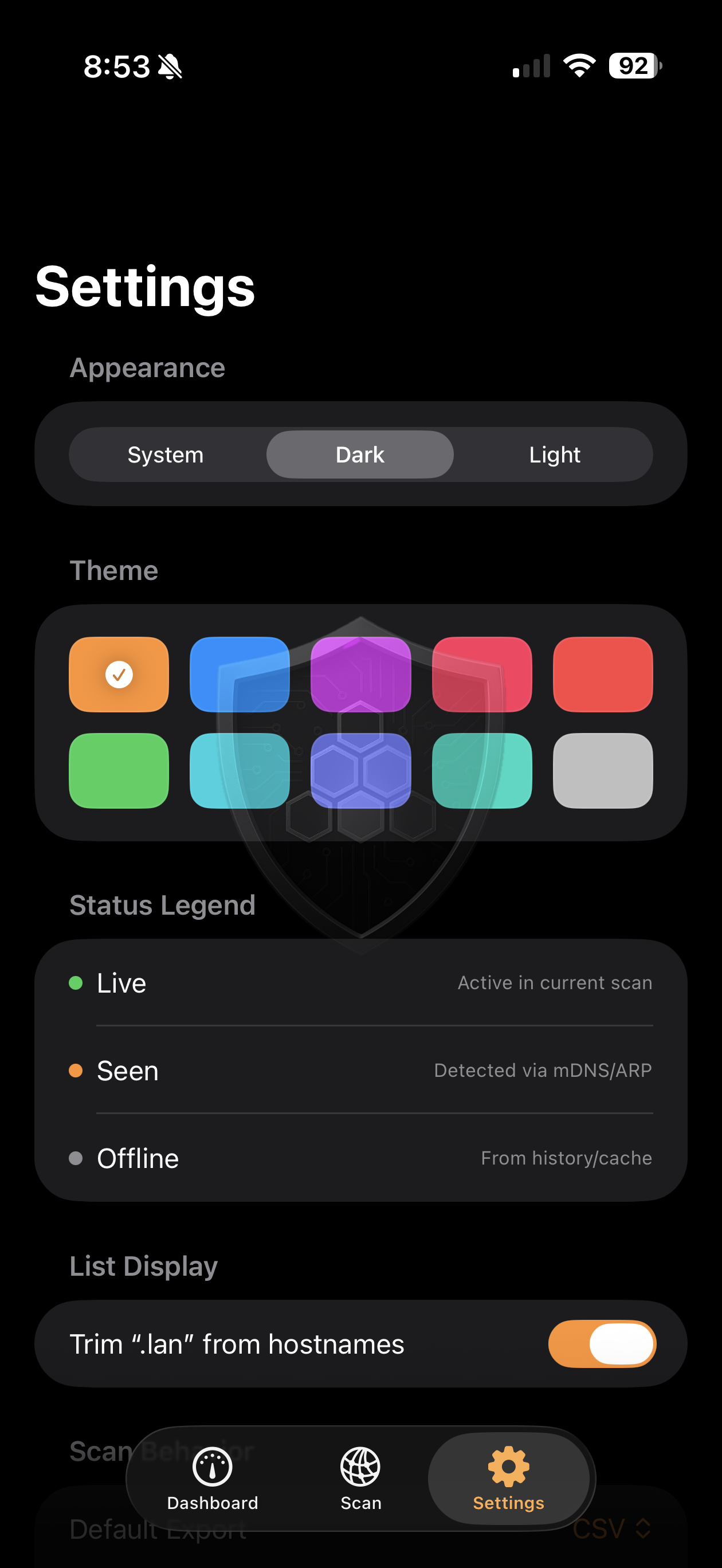
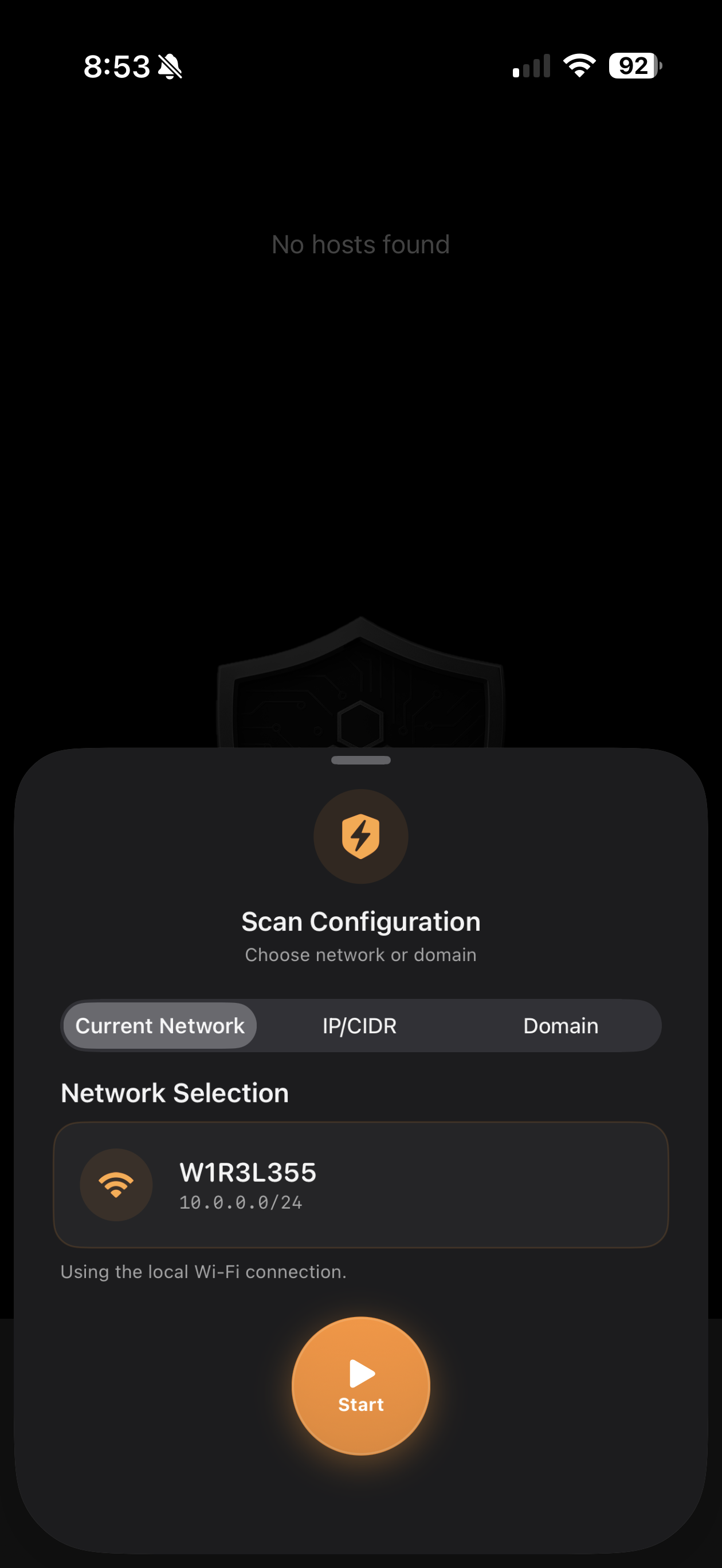
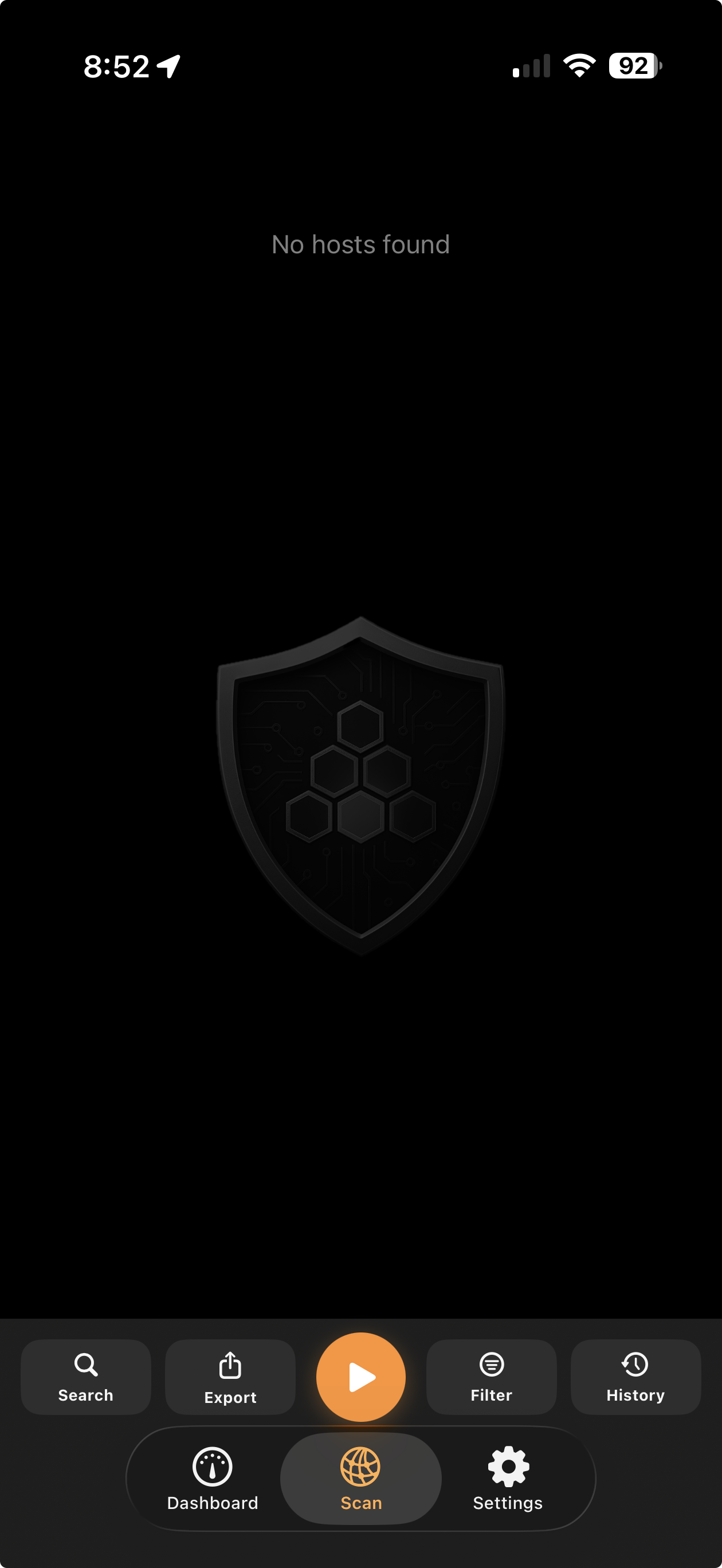
Whether you run IT, manage a home lab, or just want to know what is on the Wi-Fi around you, ScanLan gives fast, local insight.
Download on the App StoreFAQ
Local Network permission is required so ScanLan can discover and analyze hosts and services on the Wi-Fi network your iPhone is connected to.
Core scanning results are processed locally on-device. Exported files are only created and shared when you choose to export.
No. Core functionality works without account creation.
You can export findings as CSV, JSON, TXT, or changes-only CSV and share them using iOS share actions.